Mazda Network Required Enable Connectivity and Restart App
The “Mazda Network Required. Please Enable Connectivity and Restart MyMazda App” error can frustrate any Mazda owner. This guide walks you through simple steps to fix connectivity issues, restore your MyMazda app, and get your Mazda connected services running again. You will learn quick troubleshooting tips, common causes, and expert advice to prevent this problem in the future.
You turn the key or press the start button in your Mazda, and everything seems fine. Then you glance at the infotainment screen and see a message that stops you cold: “Mazda Network Required. Please Enable Connectivity and Restart MyMazda App.” It is annoying. It is confusing. And it can make you feel like your connected car features just stopped working out of nowhere.
Here is the good news. This error is one of the most common issues Mazda owners face. And in most cases, you can fix it yourself in just a few minutes. Whether you use Mazda connected services for remote start, navigation, or vehicle monitoring, getting your network back online is essential. This guide covers everything you need to know to troubleshoot, fix, and prevent this connectivity problem.
We will walk you through the exact steps to resolve the Mazda network required error. You will learn why it happens, what tools you need, and how to keep your MyMazda app running smoothly. Let us get your Mazda connected again.
Key Takeaways
- Quick Fix Available: Restarting your MyMazda app and enabling network connectivity resolves most error messages quickly.
- Multiple Causes Exist: The error can stem from Wi-Fi issues, app glitches, outdated software, or account problems.
- Step-by-Step Solutions: We provide clear, actionable steps you can follow right from your phone or vehicle.
- Prevention Tips Included: Learn how to keep your Mazda vehicle connectivity running smoothly long-term.
- Expert Insights: Real-world advice from automotive tech experts helps you avoid common mistakes.
- When to Seek Help: Know when the problem needs professional Mazda dealer assistance.
📑 Table of Contents
- What Does “Mazda Network Required” Mean?
- How to Fix the Mazda Network Connectivity Issue
- Preventing Future Mazda Connectivity Problems
- Mazda Connected Services: What You Get When Connected
- Common Mistakes to Avoid When Fixing the Error
- Expert Tips for Long-Term Mazda Connectivity
- When to Visit a Mazda Dealer for Connectivity Issues
- How Mazda Connectivity Has Evolved
- Key Takeaways
- Conclusion
What Does “Mazda Network Required” Mean?
When you see the “Mazda Network Required” message, your vehicle is telling you that it cannot connect to the internet or Mazda cloud services. The MyMazda app relies on a stable network connection to function. Without that connection, features like remote start, vehicle tracking, and smart navigation go offline.
This error often appears on the infotainment display or through the MyMazda app on your smartphone. It means the communication link between your car and Mazda servers has been interrupted. Several things can cause this break in connection.
Common Reasons for the Network Error
- Weak Wi-Fi Signal: Your vehicle may be out of range from a known Wi-Fi network.
- App Glitch: The MyMazda app may need a simple restart to re-establish the connection.
- Outdated Software: Old software versions on your phone or car system can cause compatibility issues.
- Account Issues: Your Mazda account login may have expired or require re-authentication.
- Network Settings Reset: A recent reset of your vehicle settings can wipe saved network configurations.
- Server Outage: Sometimes Mazda cloud servers experience temporary downtime.
Understanding the root cause helps you pick the right fix. Most of the time, the solution is straightforward and takes less than five minutes.
How to Fix the Mazda Network Connectivity Issue
Let us get into the fixes. Follow these steps in order. Most owners resolve the problem within the first two or three steps.
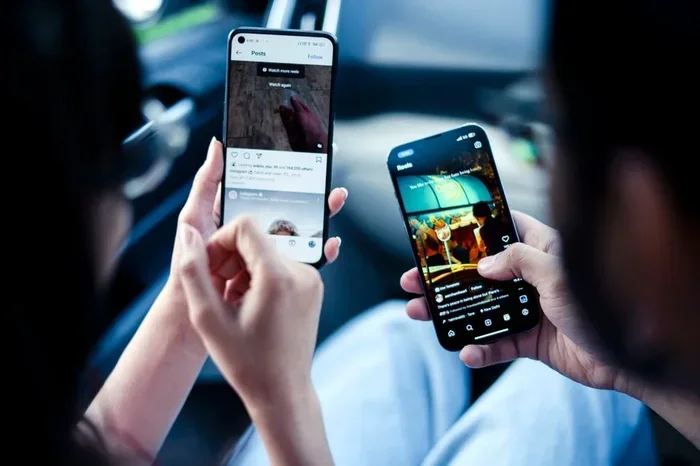
Visual guide about Mazda smartphone connectivity
Image source: images.pexels.com
Step 1: Restart Your MyMazda App
The simplest and most effective fix is to restart the MyMazda app. This clears temporary glitches and forces the app to reconnect to Mazda servers. On your phone, fully close the app and reopen it. On iPhone, swipe up from the bottom and swipe the app card away. On Android, tap the recent apps button and swipe the app off screen.
After reopening, check if the “Mazda Network Required” message is gone. If it persists, move to the next step.
Step 2: Enable Connectivity on Your Phone
Make sure your phone has an active internet connection. The MyMazda app needs data or Wi-Fi to communicate with Mazda servers. Turn on mobile data or connect to a Wi-Fi network. Check that your phone is not in airplane mode.
Sometimes toggling airplane mode on and off refreshes your phone network connection. This quick trick works surprisingly well for Mazda app troubleshooting. Simply swipe down from the top of your screen, tap airplane mode, wait ten seconds, and tap it again.
Step 3: Check Your Vehicle Network Settings
Your Mazda has its own network settings. Go to the infotainment system settings and look for the network or connectivity section. Make sure Wi-Fi is turned on and your vehicle is connected to a network. If your Mazda supports a built-in WiFi hotspot, ensure it is enabled.
Some Mazda models let you connect to the internet through a built-in SIM card or through your phone hotspot. Check which method your vehicle uses and make sure it is active.
Step 4: Update the MyMazda App
An outdated MyMazda app version can cause connectivity errors. Visit the App Store or Google Play Store and check for updates. Installing the latest version often resolves compatibility issues with Mazda cloud services.
Similarly, check if your Mazda infotainment system needs a software update. Many newer Mazda models support over-the-air updates. Go to your vehicle settings and look for the system update option.
Step 5: Sign Out and Back Into Your Mazda Account
Sometimes your Mazda account login needs a refresh. Sign out of the MyMazda app completely, then sign back in with your credentials. This re-establishes the link between your app, your vehicle, and Mazda servers.
If you have multiple Mazda vehicles linked to your account, make sure the correct vehicle is selected. A mismatch here can trigger the network error.
Step 6: Reset Network Settings on the Vehicle
If none of the above steps work, you may need to reset the network settings on your Mazda. Go to the infotainment system settings, find the network or connection menu, and select the reset option. This clears any corrupted network configurations and allows you to set up a fresh connection.
Be aware that resetting network settings may remove saved Wi-Fi passwords. You will need to reconnect to your preferred networks after the reset.
Step 7: Contact Mazda Support
If the “Mazda Network Required” error persists after all these steps, it is time to contact Mazda support. There may be a server-side issue or a hardware problem with your vehicle WiFi module. Mazda customer service can run diagnostics remotely and guide you through advanced troubleshooting steps.
You can reach Mazda support through the MyMazda app, by phone, or by visiting your local Mazda dealer. Keep your vehicle identification number handy when you reach out.
Preventing Future Mazda Connectivity Problems
Once you have fixed the error, you want to keep it from coming back. Prevention is always easier than troubleshooting. Here are practical steps to maintain smooth Mazda vehicle connectivity at all times.
Keep Your App and Software Updated
Regular updates fix bugs and improve compatibility. Enable automatic updates for the MyMazda app on your phone. Check your Mazda infotainment system for software updates at least once a month. These updates often include connectivity improvements and bug fixes.
Maintain a Stable Network Connection
Your Mazda needs a reliable internet connection to stay linked to Mazda services. If you use a phone hotspot, make sure your phone has a strong cellular signal. If you rely on Wi-Fi, park your vehicle within range of a stable network.
Consider setting your Mazda to automatically connect to your home WiFi network. This ensures your vehicle stays connected even when you are not actively using it.
Restart Your App Regularly
Just like any other app, the MyMazda app benefits from regular restarts. Make it a habit to close and reopen the app once a week. This prevents memory buildup and keeps the app running smoothly.
Monitor Your Mazda Account Status
Check that your Mazda account is active and in good standing. Some connected services require a subscription or trial period. If your trial expires, you may lose connectivity until you renew. Keep track of your account status to avoid surprise disruptions.
Mazda Connected Services: What You Get When Connected
Understanding what you lose when the Mazda network required error appears helps you appreciate why fixing it matters so quickly. Mazda connected services offer a range of features that enhance your driving experience and vehicle ownership.
When your Mazda vehicle connectivity is working, you get access to:
- Remote Start: Start your engine from your phone before you get in the car.
- Vehicle Tracking: Locate your Mazda on a map if you forget where you parked.
- Smart Navigation: Get real-time traffic updates and points of interest through your infotainment system.
- Digital Key: Use your phone as a key to lock, unlock, and start your vehicle.
- Maintenance Alerts: Receive notifications about service needs and schedule appointments directly from the app.
- Emergency Assistance: Automatic crash notification and roadside assistance through the connected system.
All of these features depend on a stable network connection. When the “Mazda network required” error appears, you temporarily lose access to these valuable tools. That is why quick resolution matters.
Common Mistakes to Avoid When Fixing the Error
Even with good intentions, some owners make mistakes that worsen the problem or waste time. Here are common pitfalls to avoid.
Skipping the App Restart
Many people jump straight to complex solutions when a simple app restart would fix the issue. Always try the easiest fix first. Restarting the MyMazda app resolves the error for a large percentage of users.
Ignoring Phone Updates
Your phone operating system affects how the MyMazda app performs. An outdated phone OS can create compatibility problems with the app. Keep your phone software up to date to ensure smooth Mazda app troubleshooting experiences.
Forgetting to Check Mazda Servers
Sometimes the problem is not on your end. Mazda servers occasionally go down for maintenance or experience outages. Check Mazda’s official website or social media channels for service status updates before diving into extensive troubleshooting.
Not Clearing App Cache
Over time, the MyMazda app accumulates cached data that can interfere with connectivity. Clearing the app cache forces the app to download fresh data from Mazda servers. This simple step is often overlooked but can be surprisingly effective.
Using the Wrong WiFi Network
Some vehicles connect to specific WiFi networks for Mazda cloud services. If your vehicle is trying to connect to a public or unsecured network, it may fail to authenticate. Always use a trusted, password-protected network for the best results.
Expert Tips for Long-Term Mazda Connectivity
Automotive technology experts share these tips to keep your Mazda connected car experience seamless.
Set a weekly reminder to open the MyMazda app and check for any notifications. This keeps you aware of any issues before they become problems. It also ensures the app stays active in the background and maintains its connection to Mazda servers.
Use a dedicated WiFi hotspot if your vehicle supports it. A dedicated hotspot with a strong signal provides more reliable connectivity than relying on your phone’s data connection. Some Mazda models support built-in WiFi hotspots with a subscription plan from Mazda.
Keep your vehicle parked in areas with good network coverage. If you live in a rural area with weak cellular signals, your Mazda telematics system may struggle to maintain a connection. Parking near a window or in an area with better reception can help.
Document your network settings. Write down your WiFi passwords and network configurations in a safe place. If you ever need to reset your network settings, you will not have to scramble to remember your login details.
When to Visit a Mazda Dealer for Connectivity Issues
Most Mazda network required errors resolve with the steps outlined above. However, some situations require professional attention. If you have tried all troubleshooting steps and the error persists for more than 24 hours, visit your local Mazda dealer.
A dealer can run diagnostic tests on your vehicle WiFi module and infotainment system. They can check for hardware failures that you cannot fix at home. They also have access to Mazda’s internal service tools and can push updates directly to your vehicle.
Do not ignore persistent connectivity issues. A vehicle that cannot connect to Mazda services may also have trouble with safety features that rely on the network. Getting professional help quickly protects both your connected features and your overall driving safety.
How Mazda Connectivity Has Evolved
Mazda has invested heavily in connected car technology over the past few years. The MyMazda app has grown from a simple remote start tool into a comprehensive vehicle management platform. Today, Mazda owners can access everything from vehicle health reports to smart home integration through their connected services.
This evolution means that staying connected is more important than ever. The “Mazda Network Required” error may appear more frequently as owners use more features that depend on connectivity. Understanding how to troubleshoot this error is now a core part of owning a modern Mazda vehicle.
Key Takeaways
- Restart the MyMazda app first: This simple step resolves the error for most users quickly.
- Check your phone and vehicle network settings: Ensure both have active internet connections before trying anything else.
- Keep software updated: Regular updates to the app and vehicle system prevent many connectivity issues.
- Avoid common mistakes: Do not skip the simple fixes or ignore server status updates.
- Prevent future issues: Maintain good network habits and monitor your Mazda account regularly.
- Know when to seek help: Persistent errors need professional diagnosis from a Mazda dealer.
- Stay connected for safety: Mazda connected services include safety features that depend on network connectivity.
Conclusion
The “Mazda Network Required. Please Enable Connectivity and Restart MyMazda App” error is a temporary hurdle, not a permanent problem. With the right steps, you can get your Mazda connected services back online in minutes. Start with the simple fixes, work your way through the troubleshooting steps, and reach out to Mazda support if needed.
Remember that Mazda vehicle connectivity enhances your driving experience in meaningful ways. From remote start to emergency assistance, these features add real value to your ownership experience. Keeping your MyMazda app and network settings in good shape ensures you never miss out on what your Mazda has to offer.
Take a few minutes today to review your network settings and update your app. A small investment of time now saves you from frustration later. Your Mazda is designed to be connected. With the right knowledge, you can keep it that way.
Frequently Asked Questions
Why does my Mazda keep saying network required?
This error typically appears when your vehicle loses its internet connection. It can happen due to weak Wi-Fi signals, app glitches, or outdated software. Restarting the MyMazda app and checking your network settings usually resolves the issue quickly.
How do I enable connectivity on my Mazda?
Go to your Mazda infotainment system settings and navigate to the network or connectivity section. Turn on Wi-Fi or enable your phone hotspot. Make sure your vehicle is connected to a stable network. You can also enable connectivity through the MyMazda app on your smartphone.
Can I use the MyMazda app without an internet connection?
No, the MyMazda app requires an active internet connection to communicate with Mazda servers. Without connectivity, features like remote start, vehicle tracking, and smart navigation will not work. Make sure your phone has data or Wi-Fi access before using the app.
How often should I update the MyMazda app?
You should check for updates at least once a week. Enable automatic updates in your app store to ensure you always have the latest version. Regular updates fix bugs and improve Mazda app troubleshooting performance.
What should I do if restarting the app does not fix the error?
Move to the next troubleshooting step, which is checking your phone and vehicle network settings. Ensure both devices have active internet connections. If the error persists, try signing out and back into your Mazda account, then reset your vehicle network settings.
Is the Mazda Network Required error a sign of a serious problem?
In most cases, no. The error is usually caused by a temporary network disruption or a minor app glitch. It is not typically a sign of a serious hardware problem. However, if the error persists despite all troubleshooting steps, visiting a Mazda dealer for professional diagnosis is a good idea.